Body
You must have a teacher role or Canvas admin role to have access to the migration tool in a course. The course doesn't need to be Published in order to run the tool.
-
There are two ways to access the OneDrive Migration Tool in a course:
-
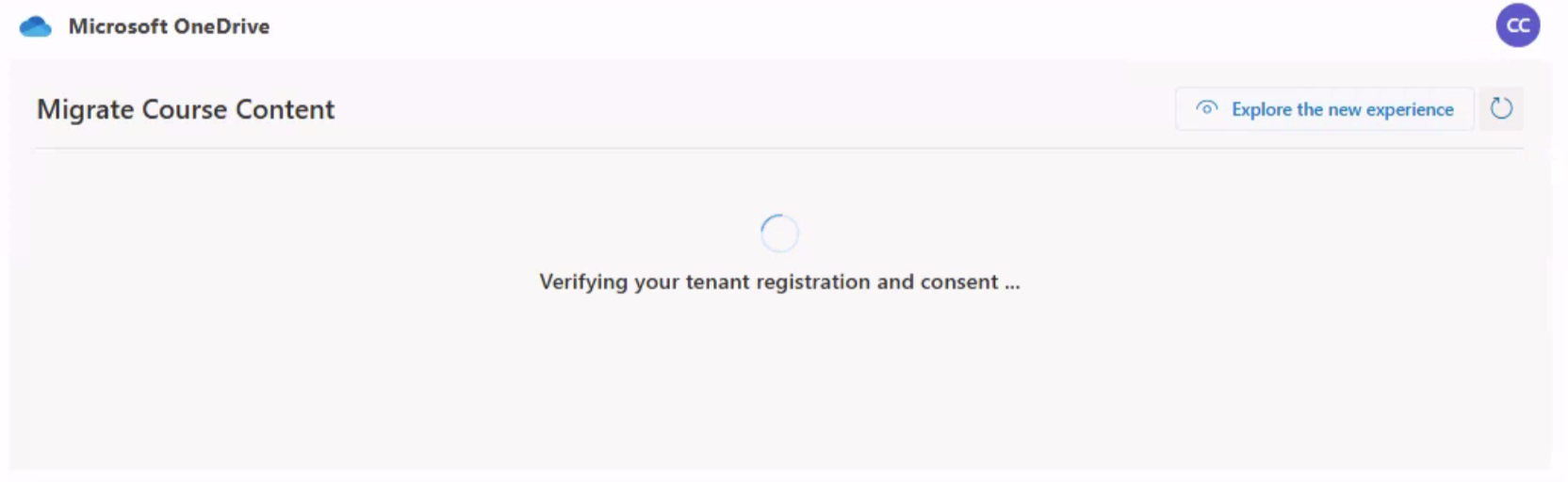
Selecting the OneDrive Migration Tool button launches the migration tool which verifies the tenant and initializes any required course resources to complete the migration. This process might take a few seconds if initialization of group and SPO resources is required.
-
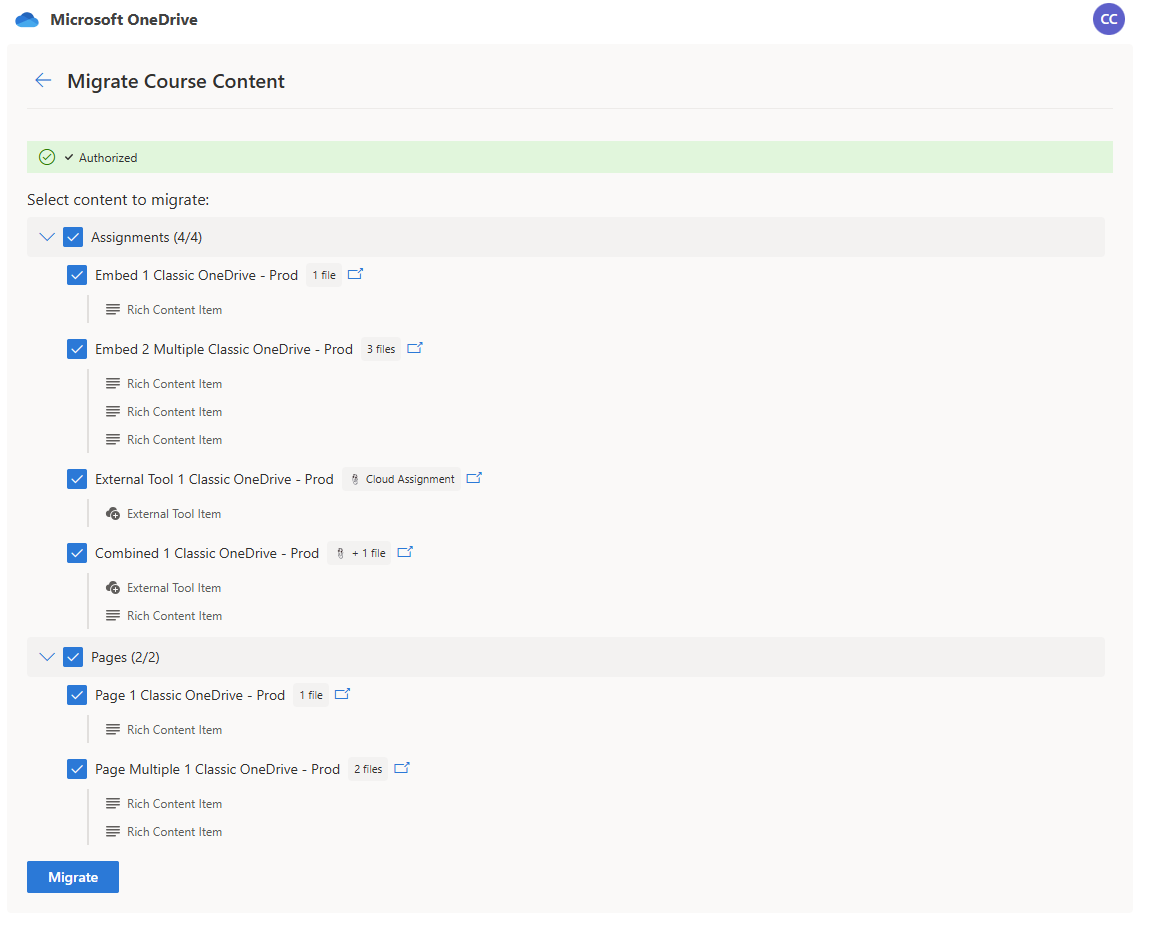
The migration tool scans your course for classic OneDrive LTI file links and displays the content items containing file links that can be migrated. The content type (for example: Assignments, Pages), name, and number of file links found are displayed. You can choose to deselect a content item to exclude it from migration.
Note
The OneDrive Migration Tool scans for classic OneDrive LTI file links that are linked or embedded in Assignments, Modules, Pages, Announcements, Discussions, Syllabus, and Quizzes (original).
Important
Course Collaborations created with the classic Microsoft OneDrive LTI aren't migrated and should be re-created using the Microsoft 365 LTI (Microsoft Education) app in Canvas courses. Old Collaborations will fail to launch after September 17, 2026; however, the files will remain on the class Microsoft OneDrive Sharepoint site for archive access and retention.
-
Confirm the content items to be migrated and select the Migrate button.
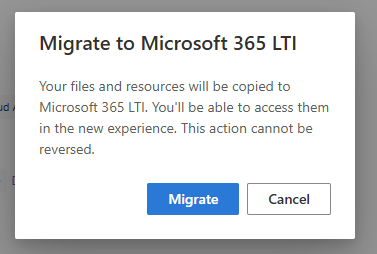
A popup appears to confirm you wish to proceed with the migration. Select Migrate to continue.
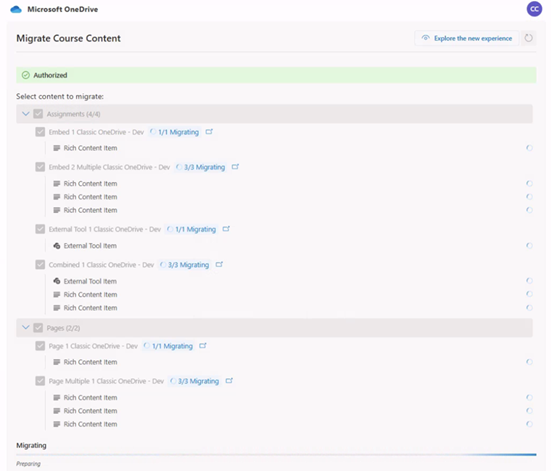
Progress indicators appear for each item and for overall progress until the migration is completed.
-
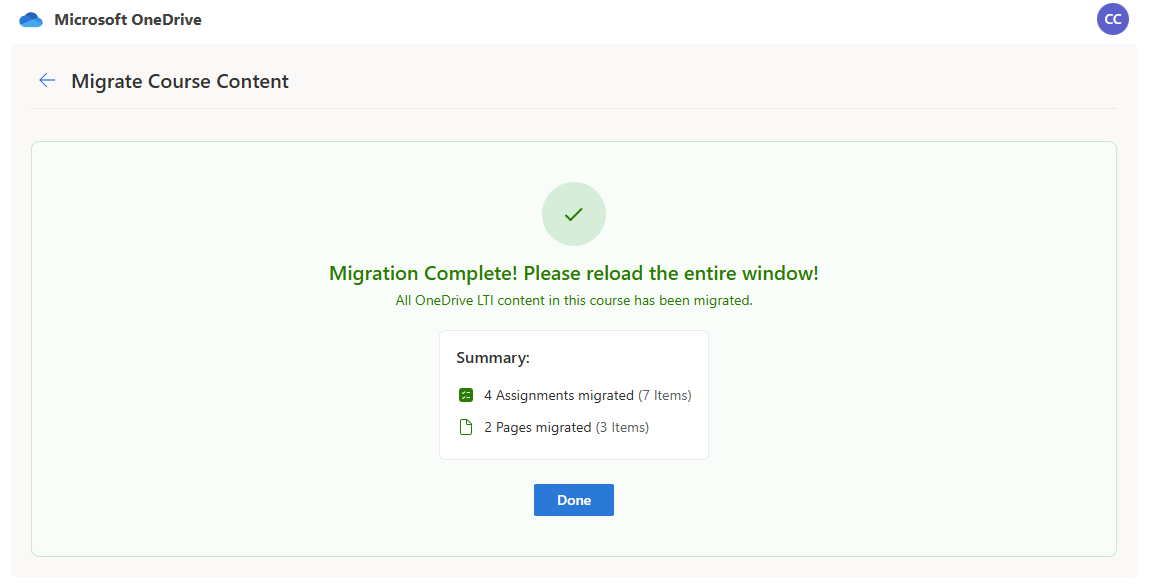
When the migration is finished, a summary appears confirming success for all files that were migrated.
-
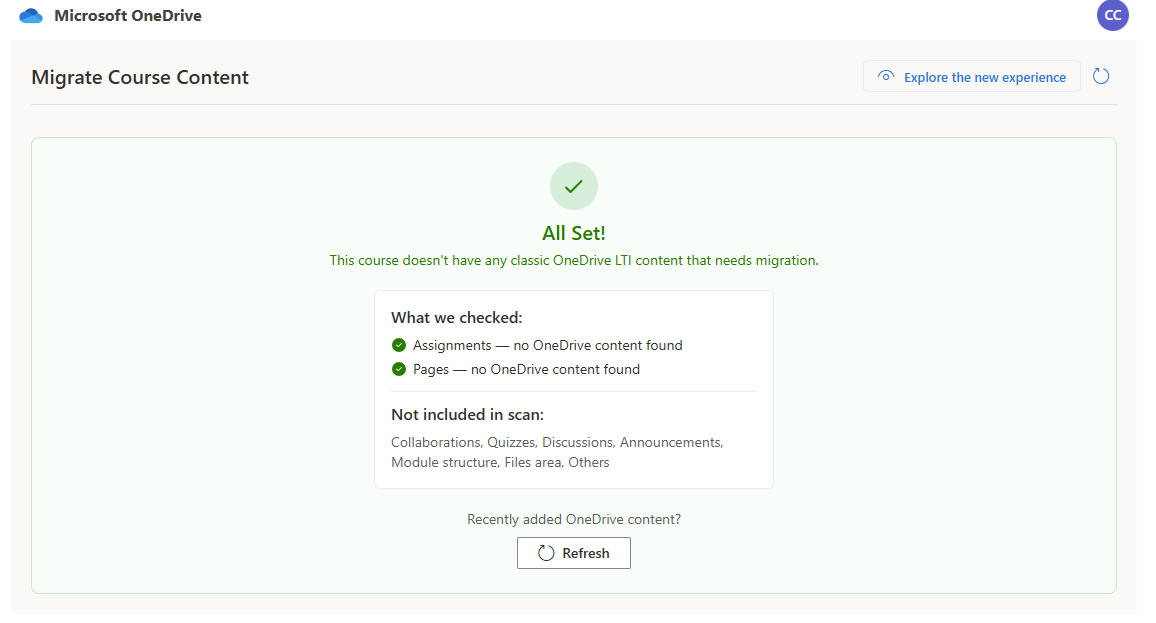
Select Done to close the view and return to the migration tool start page. The migration tool start page scans the course to confirm there aren't any additional files to migrate and lets you know if none were found. If you chose to skip any files listed for migration, those files appear as candidates for migration again and can be ignored.
Note
There's no limit to the number of files that can be migrated in a course. However, you can choose to migrate one content type at a time (for example, Assignments only) to break up the time it takes to migrate many files and also be able to confirm migration by content type.